Basic Usage
Learn how to navigate the Reflexio Web Portal, view data, and perform common operations.
Basic Usage
Enterprise Feature
This guide walks you through the core features of the Reflexio Web Portal. Learn how to navigate the interface, view your data, and perform common operations.
Dashboard Page
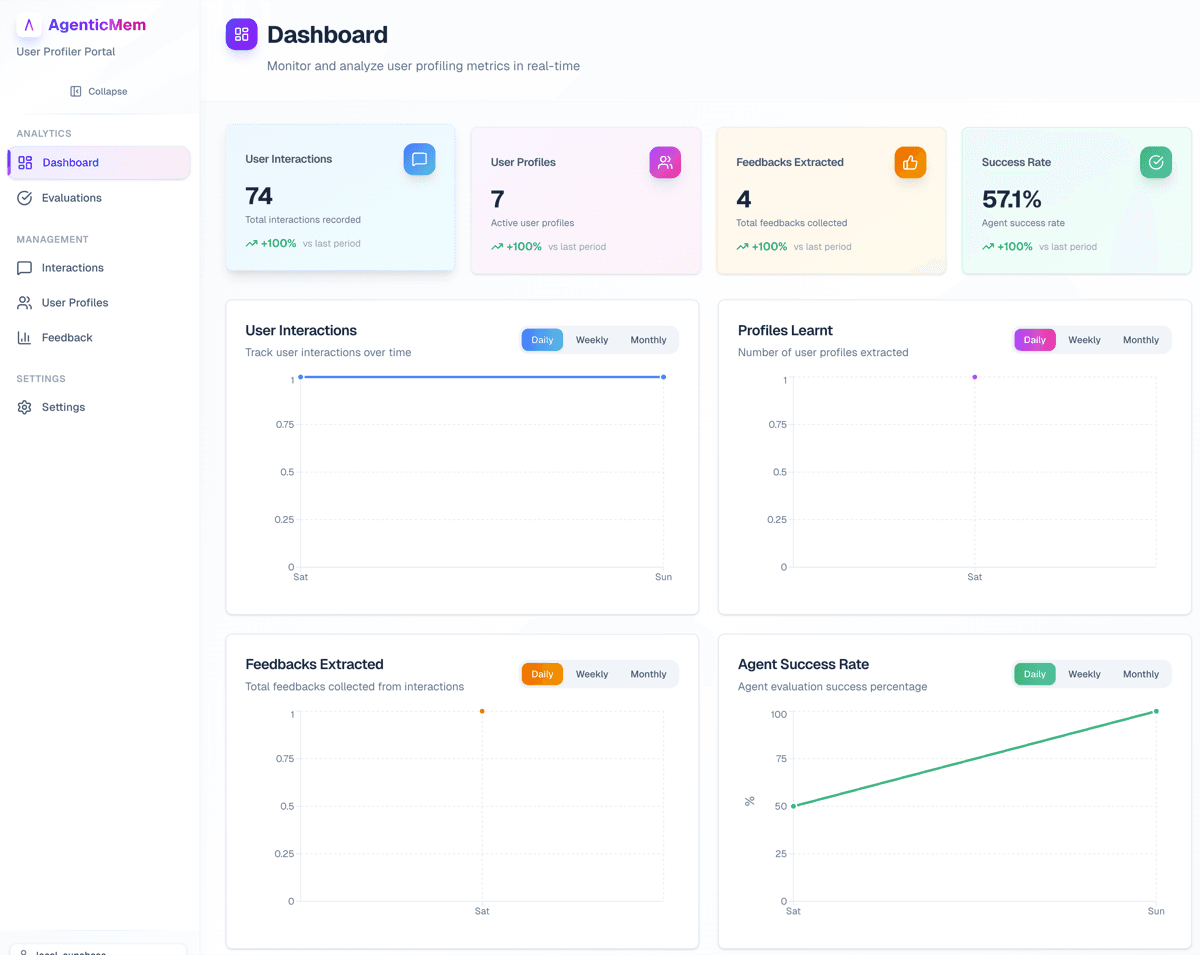
The Dashboard provides a high-level overview of your Reflexio system at a glance.
Key Features
- Real-time statistics — View current counts for all major data types
- Quick navigation — Click on any card to navigate to the detailed page
- System health — Monitor overall system activity at a glance
Interactions Page
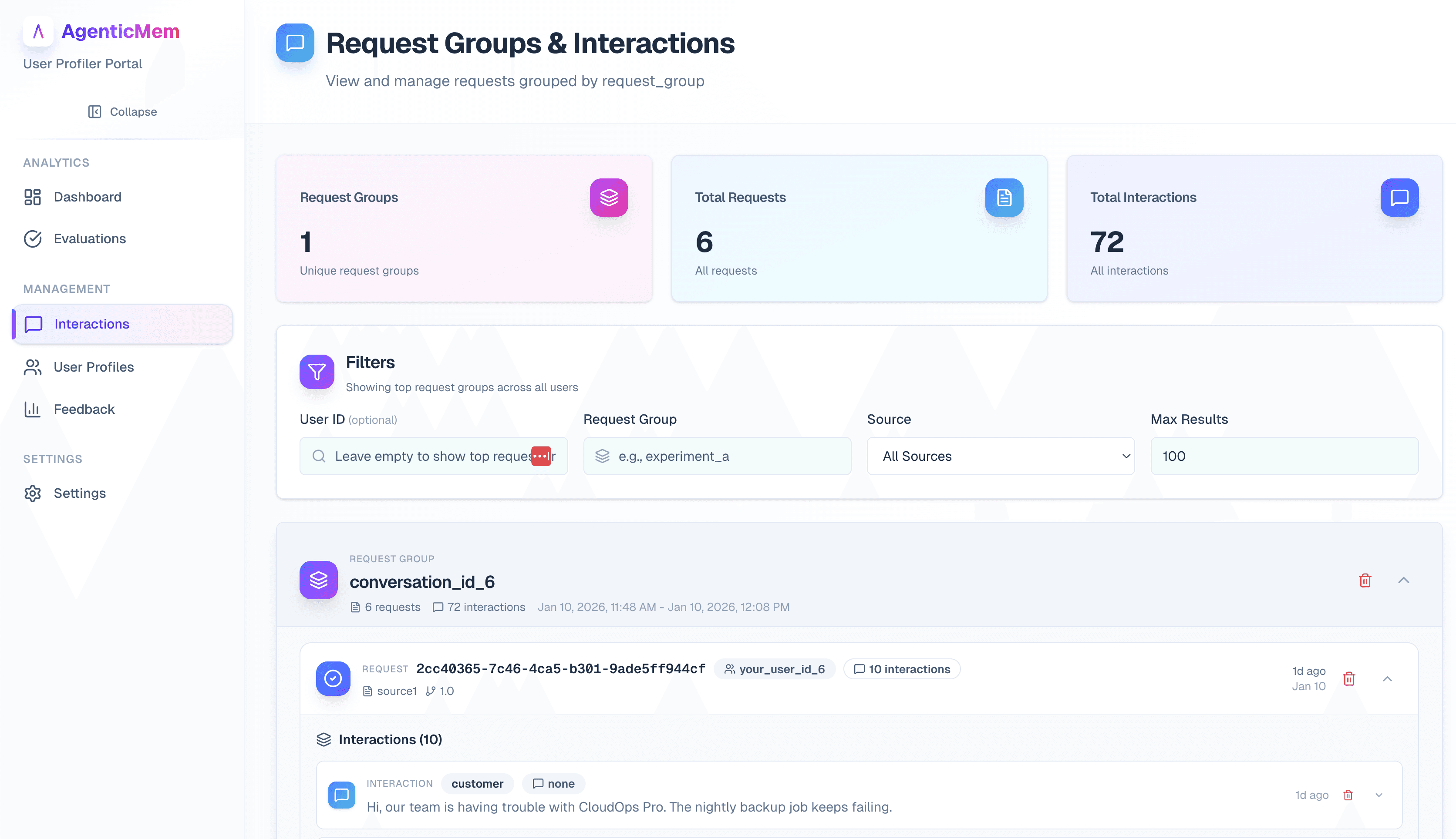
The Interactions page displays all recorded conversations between users and your agent.
Viewing Interactions
- Navigate to the Interactions page from the sidebar
- Browse the list of interaction records
- Click on any interaction row to expand and view details
Filtering and Search
Use the filter panel to narrow down results:
| Filter | Description |
|---|---|
| Search | Search by content, user ID, or request ID |
| User ID | Filter by specific user |
| Source | Filter by interaction source (e.g., API, manual) |
| Date Range | Filter by time period |
User Profiles Page
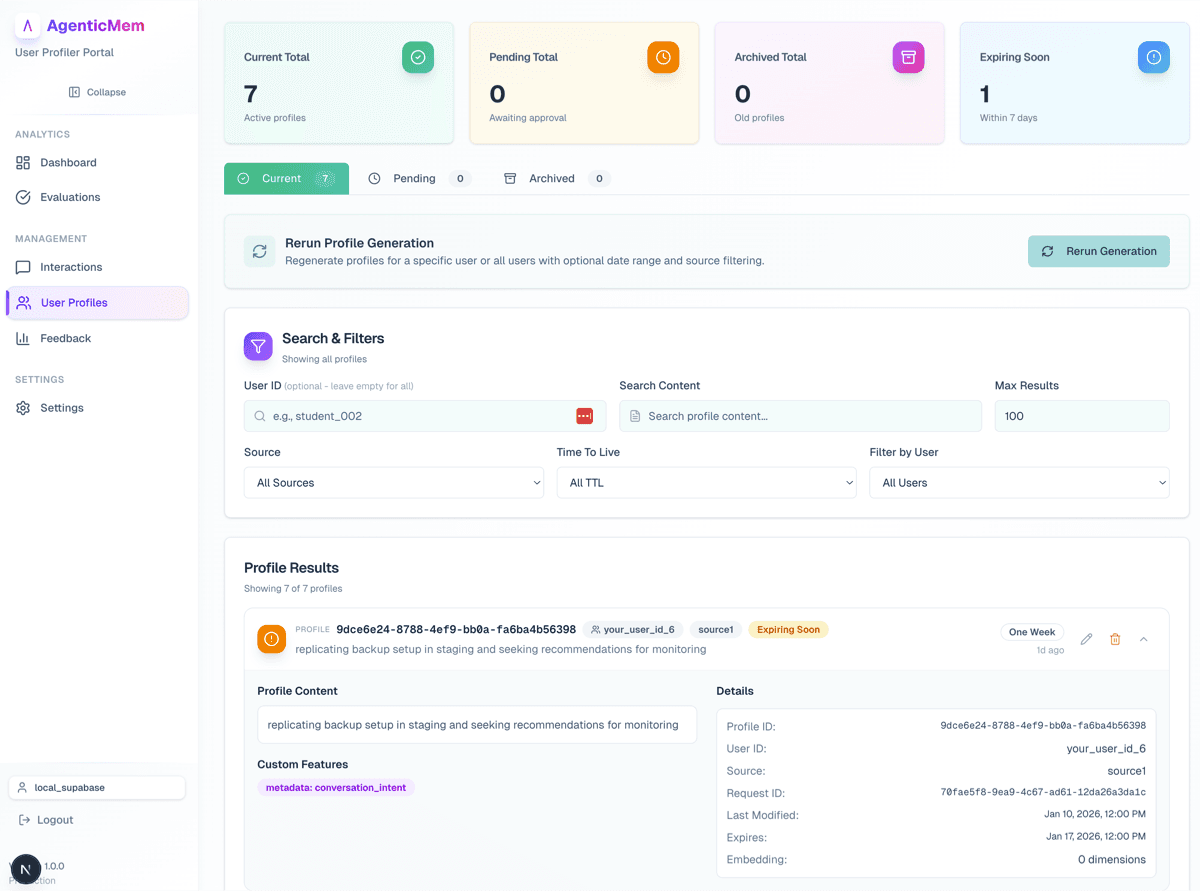
The Profiles page shows extracted user profiles and allows you to manage them.
Viewing Profiles
- Navigate to the Profiles page from the sidebar
- Browse the list of extracted profiles
- Click on a profile row to expand and view full details
Filtering Profiles
| Filter | Description |
|---|---|
| Search | Search by profile content or user ID |
| User ID | View profiles for a specific user |
| Extractor | Filter by extractor name |
| Status | Filter by current, pending, or archived |
Profile Status Tabs
Profiles are organized into three status categories:
| Tab | Description |
|---|---|
| Current | Active profiles in use |
| Pending | New profiles awaiting review |
| Archived | Previously used profiles |
Managing Profiles
Rerun Profile Extraction:

- Click Rerun Extraction on the Current tab
- Select the extractor name
- Optionally set a date range
- Click Rerun to start extraction
Adopt Pending Profiles:
- Switch to the Pending tab
- Review the pending profiles
- Click Adopt All Pending Profiles to promote them to current status
Restore Archived Profiles:
- Switch to the Archived tab
- Click Restore All Archived Profiles to move them back to current
Playbook Page
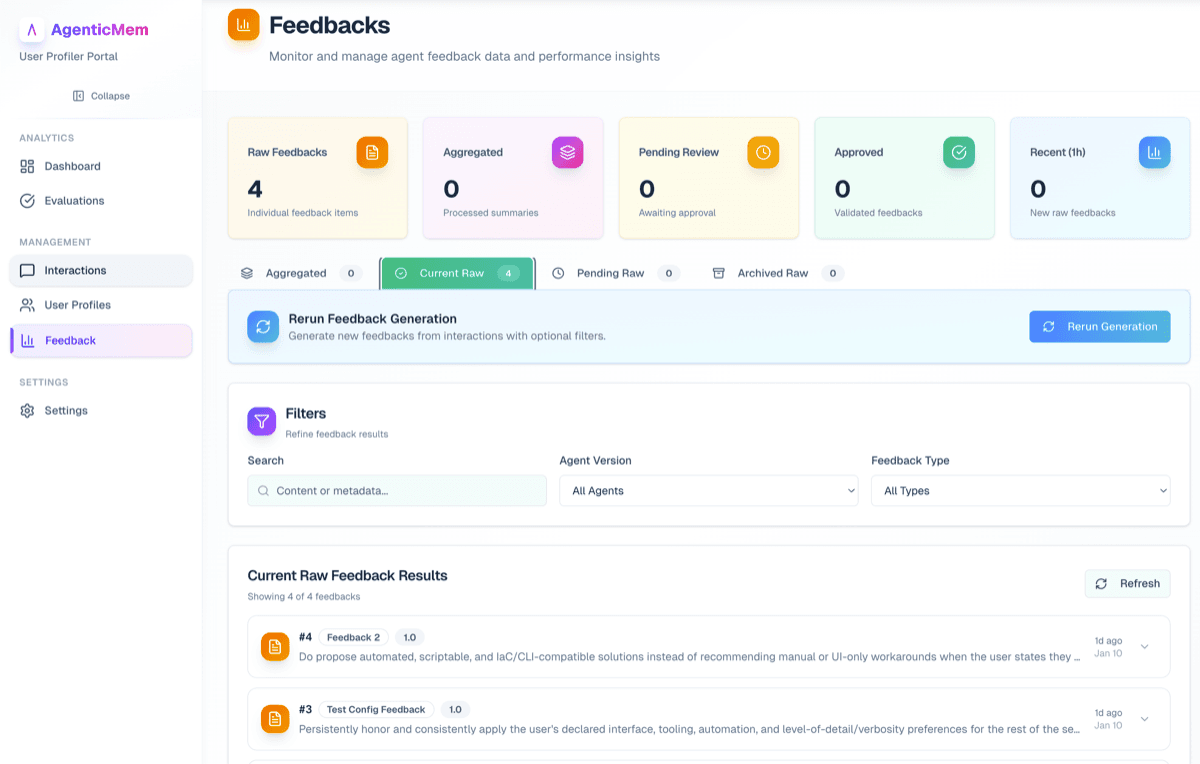
The Playbook page allows you to view, manage, and analyze agent playbook data.
Understanding Playbook Types
Reflexio handles two types of playbook entries:
| Type | Description |
|---|---|
| User Playbooks | Individual playbook entries extracted from interactions |
| Agent Playbooks | Consolidated insights from clustering user playbooks |
Viewing Playbooks
The page has four tabs:
| Tab | Description |
|---|---|
| Aggregated | View clustered playbook summaries |
| Current Raw | View active user playbook entries |
| Pending Raw | View newly generated user playbooks |
| Archived Raw | View archived user playbooks |
Filtering Playbooks
| Filter | Description |
|---|---|
| Search | Search by playbook content or metadata |
| Agent Version | Filter by agent version |
| Playbook Type | Filter by playbook name |
| Status | Filter aggregated by approved/rejected/pending |
Managing Agent Playbooks
Approve or Reject Playbook:
- Expand an agent playbook item
- Click Approve or Reject to update its status
- Status updates are saved immediately
Run Playbook Aggregation:
- Click Run Aggregation on the Aggregated tab
- Enter the Agent Version (required)
- Enter the Playbook Name (required)
- Click Run Aggregation to cluster user playbooks
Managing User Playbooks
Rerun Playbook Generation:

- Switch to the Current Raw tab
- Click Rerun Generation
- Enter the Agent Version (required)
- Optionally enter playbook name and date range
- Click Rerun Playbook Generation
Adopt Pending User Playbooks:
- Switch to the Pending Raw tab
- Click Adopt Pending User Playbooks
- Confirm the action in the dialog
This promotes pending user playbooks to current and archives existing current user playbooks.
Evaluation Page
The Evaluation page displays agent success evaluation results and performance metrics.
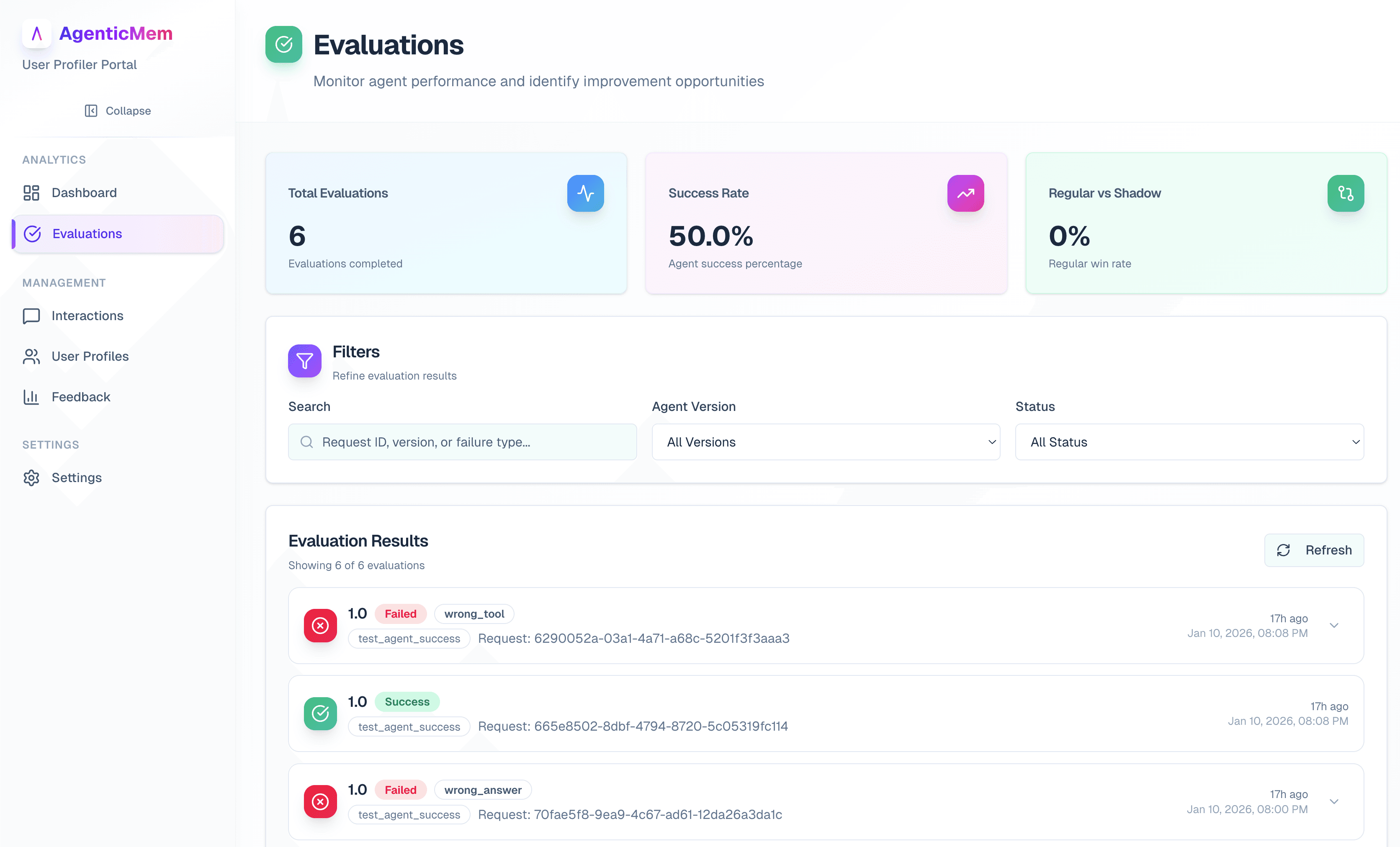
Statistics Overview
View key metrics at a glance:
| Metric | Description |
|---|---|
| Total Evaluations | Number of evaluations completed |
| Success Rate | Percentage of successful evaluations |
| Regular vs Shadow | Win rate comparing regular vs shadow responses |
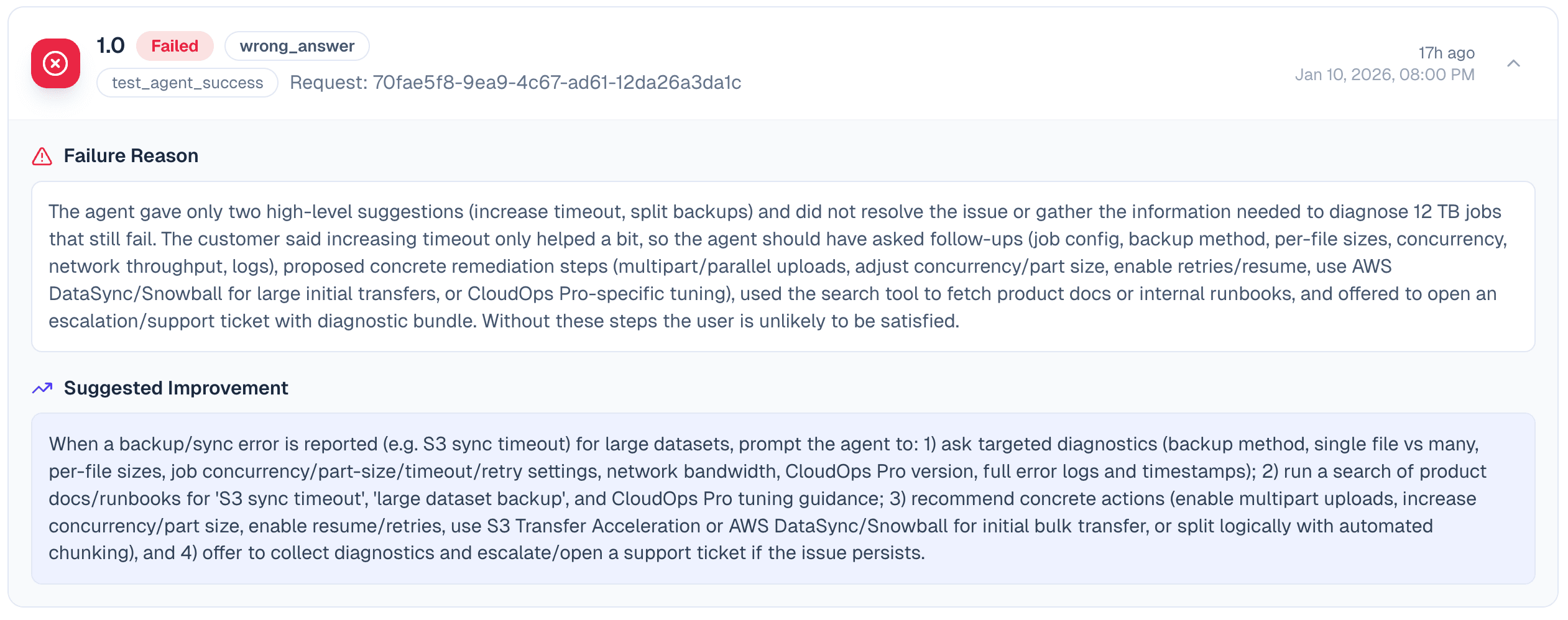
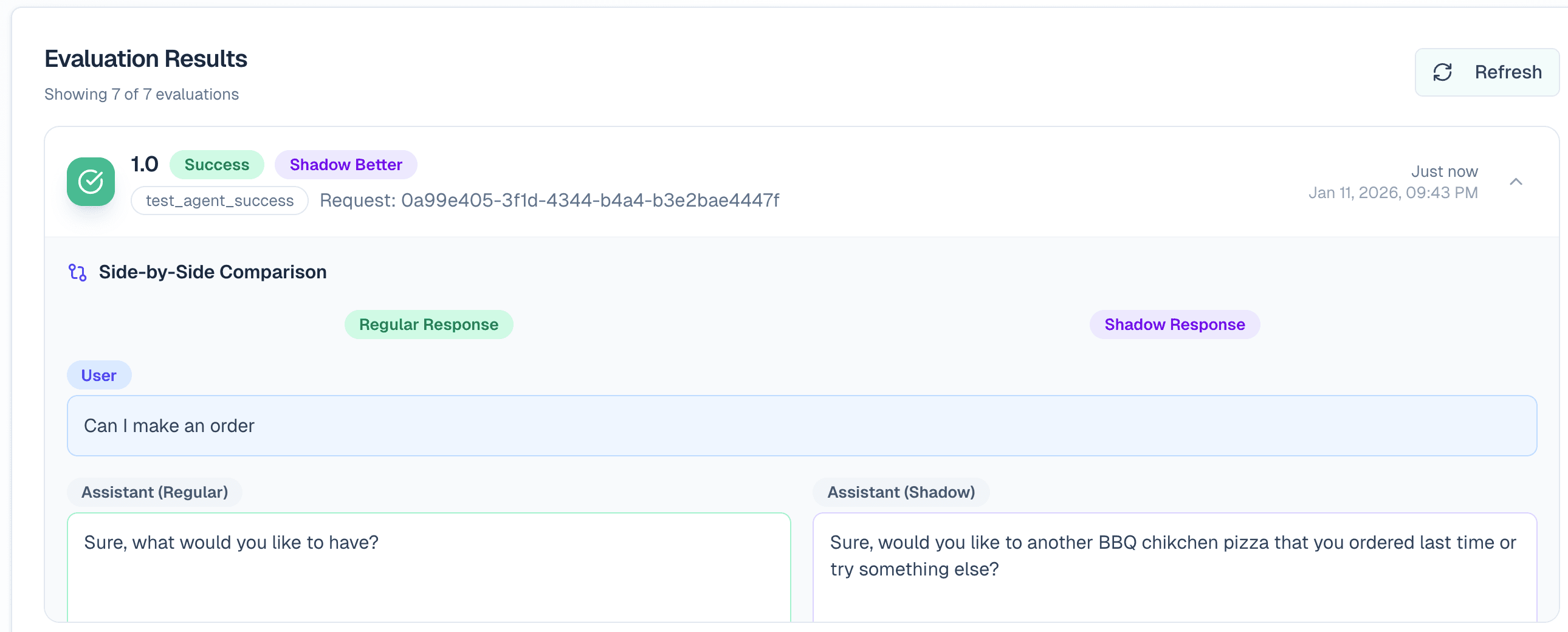
Viewing Evaluation Details
Click on a failed evaluation or one with comparison data to expand:
Failure Details Tab:
Shadow Comparison Tab:
Filtering Evaluations
| Filter | Description |
|---|---|
| Search | Search by request ID, version, or failure type |
| Agent Version | Filter by specific version |
| Status | Show only successes or failures |
Reflexio Impact Row
When sessions in the window carry the reflexio_retrieval_enabled request
metadata, the Evaluation page adds a Reflexio Impact row with a
dual-curve trend chart (treatment vs. control) and a lift-estimate tile with
a 95% confidence interval. See
Measuring Reflexio's Impact for the
integration steps and methodology contract.
Settings Page
The Settings page allows you to configure the Reflexio system.
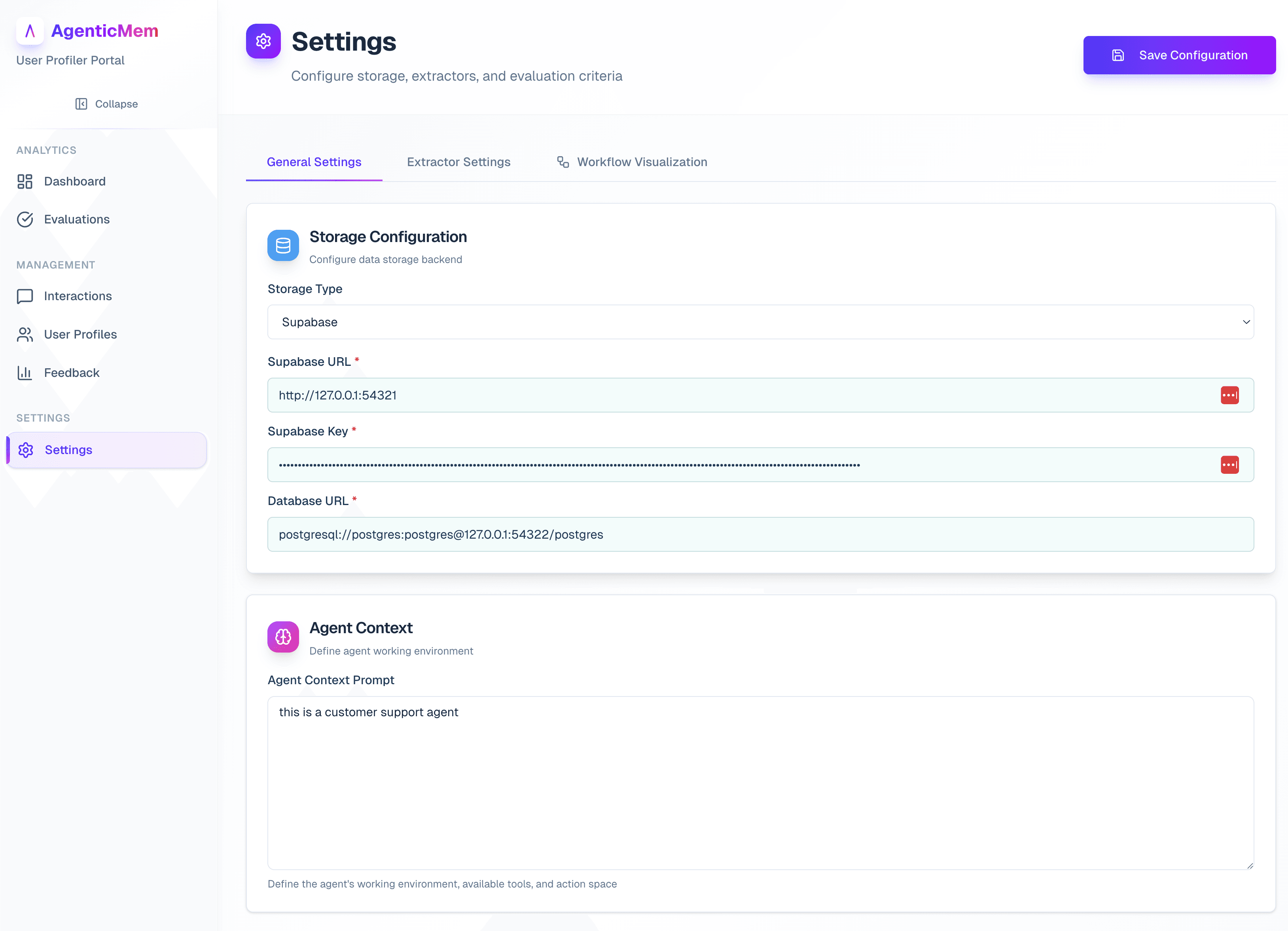
General Settings Tab
Storage Configuration:
Configure where Reflexio stores data:
| Storage Type | Configuration |
|---|---|
| Local | Set directory path |
| AWS S3 | Set region, path, access key, secret key |
| Supabase | Set URL, API key, database URL |
Agent Context:
Define your agent's working environment:
- Enter a description of the agent's purpose
- Describe available tools and capabilities
- Define the action space
Extraction Parameters:
| Parameter | Description |
|---|---|
| Window Size | Number of interactions per extraction window |
| Stride Size | New interactions required before next extraction window |
Extractor Settings Tab
Profile Extractors:
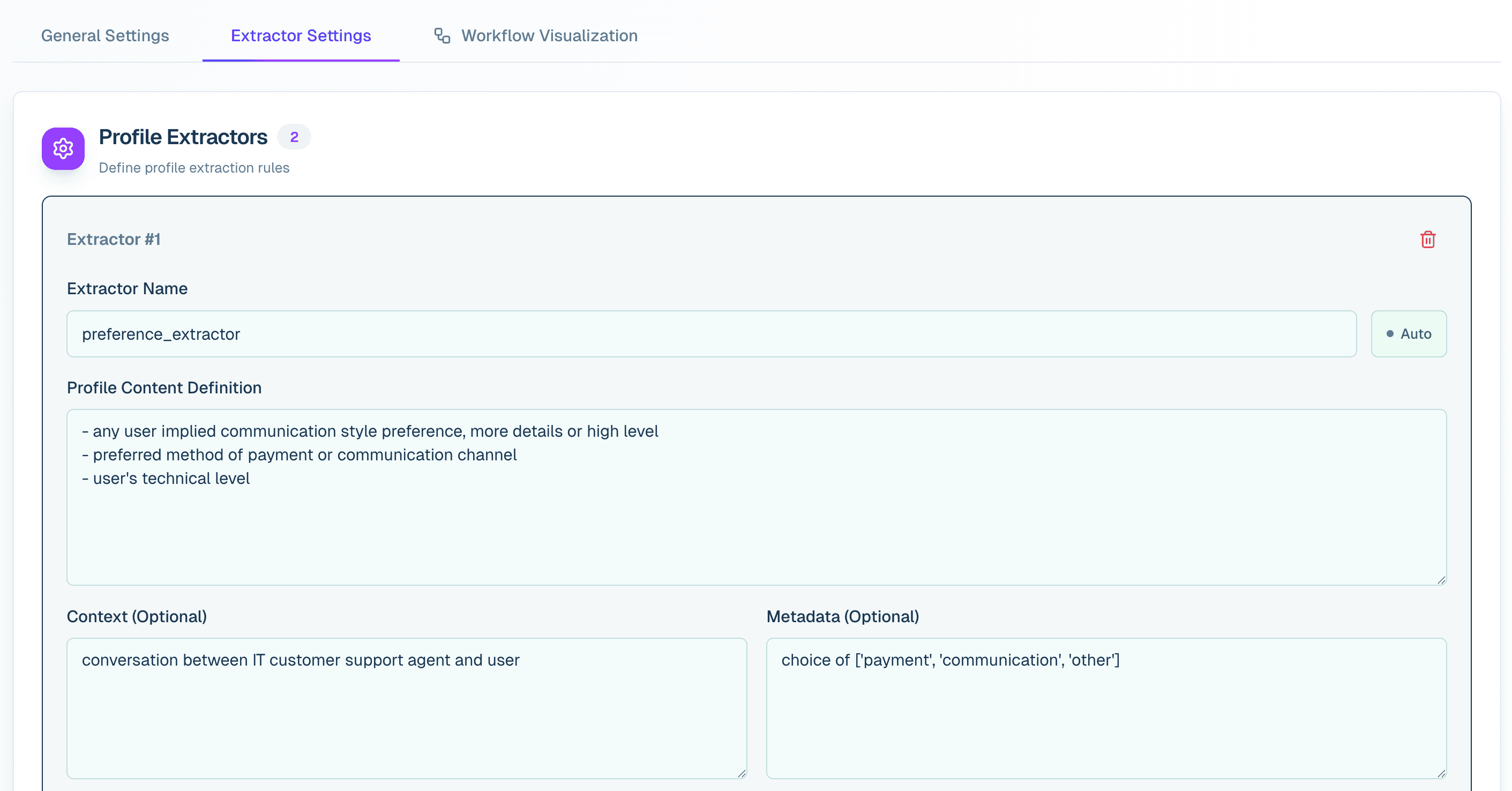
Configure how user profiles are extracted:
- Click Add Profile Extractor
- Enter an Extractor Name (e.g.,
user_preferences) - Toggle Auto/Manual mode for trigger type
- Define the Profile Content prompt
- Optionally add context, metadata prompts, and source filters
- Click Save Configuration
Agent Playbook:
Configure playbook collection:
- Click Add Agent Playbook
- Enter a Playbook Name (e.g.,
task_completion) - Define the Playbook Definition prompt
- Set Min Playbook Threshold for clustering
- Set Refresh Count for aggregation trigger
- Click Save Configuration
Agent Success Evaluations:
Define success criteria for evaluations:
- Click Add Success Evaluation
- Enter an Evaluation Name
- Define the Success Definition prompt
- Adjust the Sampling Rate (percentage of interactions to evaluate)
- Add available tools and actions
- Click Save Configuration
Workflow Visualization Tab
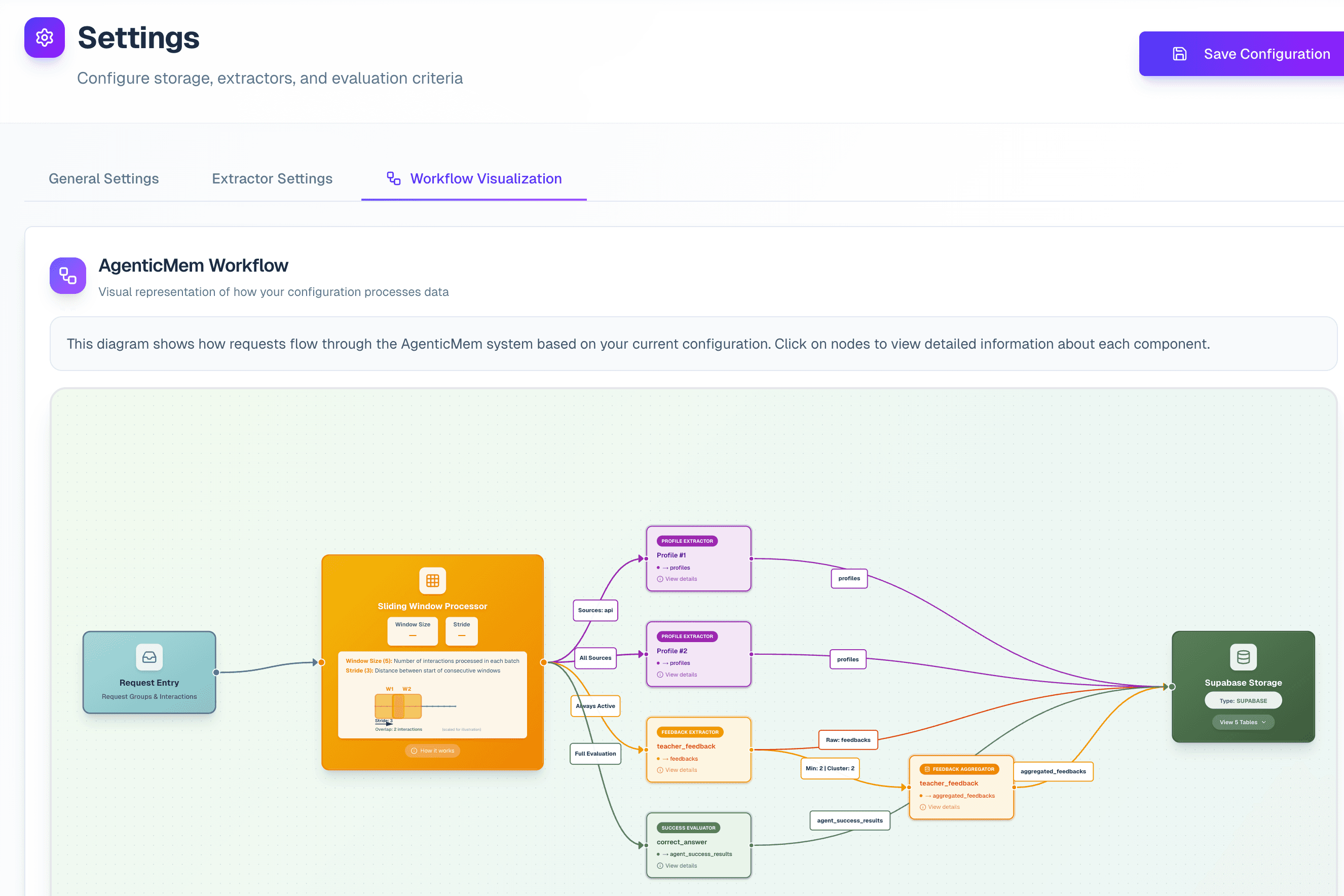
View a visual diagram of your configuration:
- See how requests flow through the system
- Understand the relationship between extractors
- Click on nodes for detailed information
Saving Configuration
- Make your changes in any tab
- Click Save Configuration in the header or footer
- Wait for the success confirmation message
Important
Always save your configuration after making changes. Unsaved changes will be lost if you navigate away.
Quick Reference
Common Actions
| Action | Where | Steps |
|---|---|---|
| View interaction details | Interactions | Click on a row |
| Filter by user | Any list page | Select user from dropdown |
| Approve playbook | Playbooks > Aggregated | Expand row, click Approve |
| Rerun extraction | Profiles | Click Rerun Extraction |
| Add extractor | Settings > Extractors | Click Add Profile Extractor |
| View failure details | Evaluations | Click on failed evaluation |
Tips for Effective Use
- Start with Dashboard — Get an overview before diving into details
- Use filters liberally — Narrow results to find what you need quickly
- Review pending items regularly — Adopt pending profiles and playbooks
- Monitor evaluations — Track success rates to identify improvement areas
- Experiment in Settings — Test different extractor configurations