

Account Setup & Onboarding
Create a Reflexio account, verify your email, and finish the first portal setup.
Connect existing traces
Already logging completed agent responses to Braintrust? Use Data sources to map and import existing traces, then keep the search integration. Preview and explicitly activate selected traffic; the publish-based setup below remains available.
Hosted Enterprise
Reflexio Enterprise registration is open to anyone — no invitation required. Create an account with an email and password, or sign up with Google or GitHub, then finish the first portal setup.
Create Your Account
Go to https://www.reflexio.ai/register.
Enter the email address you want associated with your Reflexio organization and a password, then click Create Account. You can also click Sign up with Google or Sign up with GitHub to register with an OAuth account instead.
Verify Your Email
Email/password accounts must verify before signing in: Reflexio emails a verification link to the address you registered with. Click the link to verify your account.
Verification links expire after 7 days. If your link expires, use Resend verification link from the "Check Your Email" screen.
Accounts created with Google or GitHub are verified automatically — skip this step for OAuth sign-ups.
After you verify your email or sign in with Google or GitHub for the first time, a Preparing your workspace screen appears while Reflexio sets up your organization. This usually takes about a minute, then you are taken to the dashboard. Setup continues on our servers even if you leave this screen; if you close the tab, sign in again once setup finishes.
Finish the First Portal Setup
Hosted accounts use Managed by Reflexio storage by default, so you do not need Supabase credentials for the standard Enterprise path.
Before integrating your agent, complete these portal steps:
- Select your default project and open Get started. Create a full-access project key in API Keys. Store it securely; Reflexio shows the full key only once.
- Open Settings and add the LLM provider key Reflexio should use for extraction and evaluation.
- Review the default profile and playbook extraction settings. Customize prompts only if your domain needs narrower extraction behavior.
- Save the configuration, then return to Get started to publish and retrieve a real example. Your project teammates share the saved checklist.
See the Configuration Guide for extractor, playbook, and evaluation options.
Invite Your Team
Open Account → Team access, enter a teammate's email, and click Invite member. The invitation link expires after 7 days. A pending invitation can be resent to replace the old link with a fresh one, or revoked before acceptance.
The teammate follows the email link, creates a password, and is signed in to the existing organization automatically. Accepted team members have the same organization-level access as the original login: they can use shared data, configuration, billing, and API keys, and can invite or remove other members. There are no separate team roles in this release.
Each email can belong to only one Reflexio organization. Invited team addresses use email/password login only; OAuth sign-in is not supported for them. The original organization login is always shown first in the team list and cannot be removed. An invited member can leave the organization, which immediately signs them out and revokes future access from that login.
Optional: Bring Your Own Supabase
Hosted accounts start with managed Reflexio storage. Only collect Supabase credentials if your team wants to use its own Supabase project.
Supabase URL
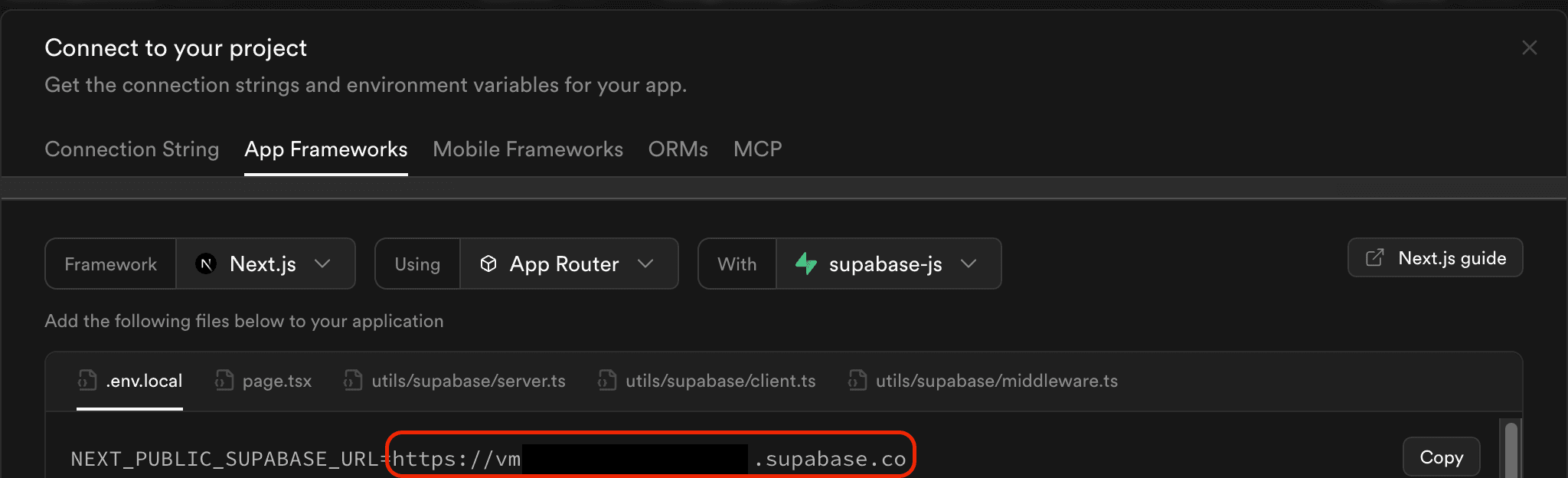
Click Connect at the top of your Supabase dashboard, select the App Frameworks tab, and copy the NEXT_PUBLIC_SUPABASE_URL value.
Format: https://<project-id>.supabase.co
Database URL (for migrations)
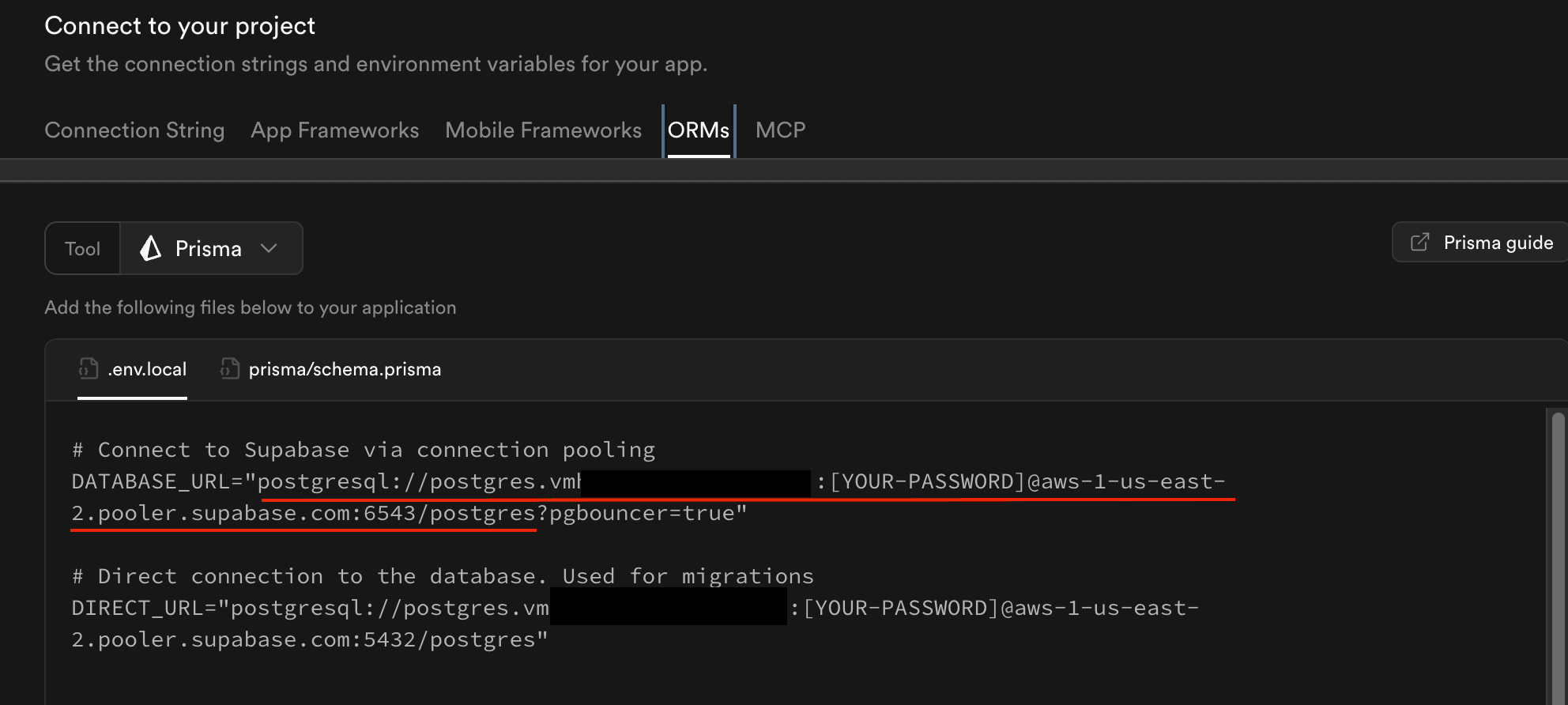
In the same Connect dialog, select the ORMs tab and copy the DATABASE_URL value (port 6543 for connection pooling).
Supabase Anon Key
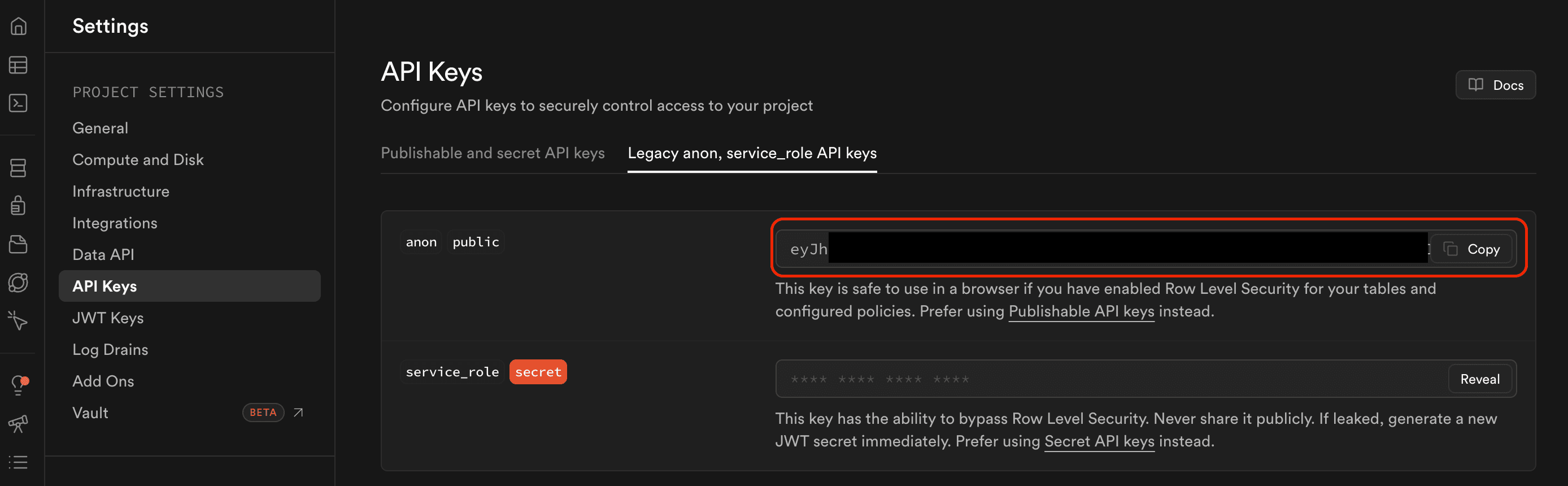
Navigate to Project Settings → API Keys, select the Legacy anon, service_role API keys tab, and copy the anon public key.
Configure Storage
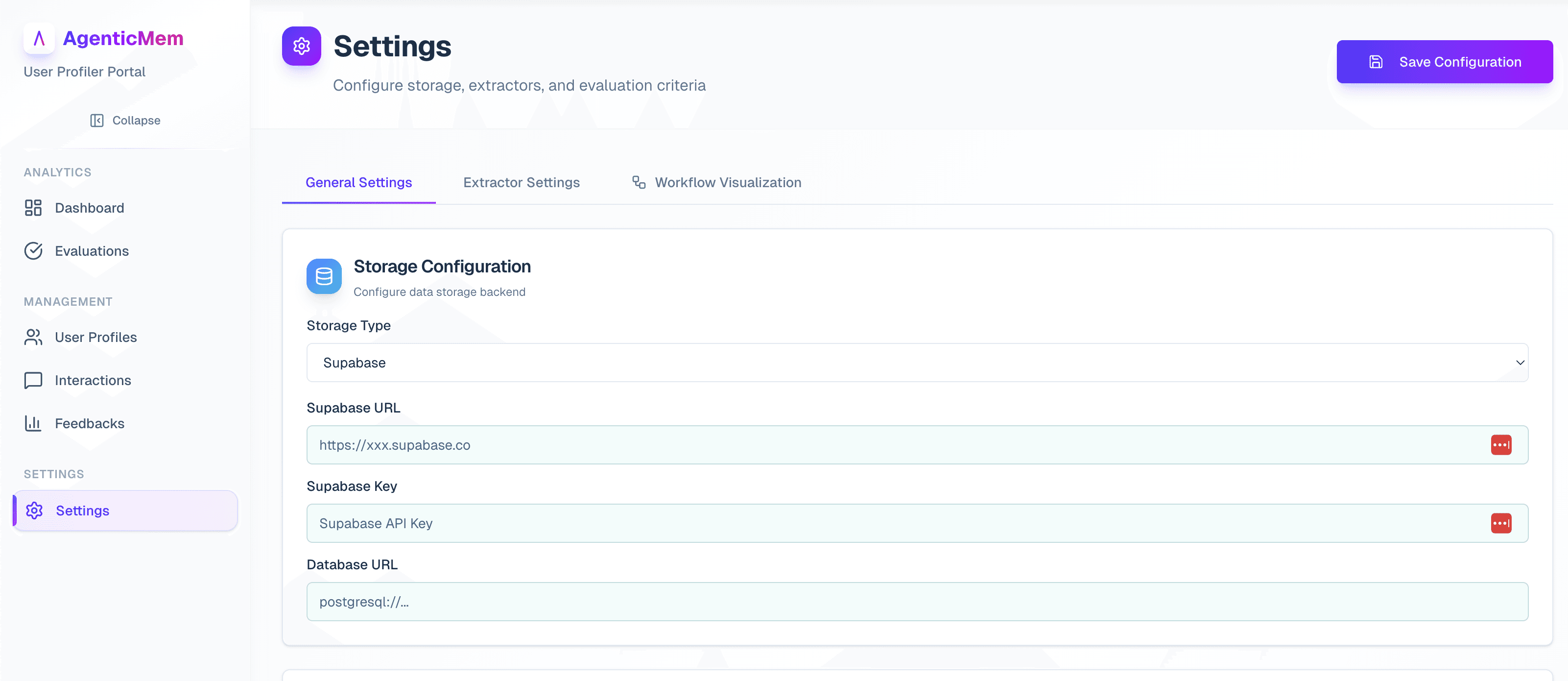
To switch from managed Reflexio storage to your own Supabase project:
- Navigate to the Settings page
- Under Storage Configuration, choose Use my own Supabase
- Enter your Supabase URL, Supabase anon key, and database URL
- Save the configuration
Invoices and Receipts
Every account can download its billing documents from Billing → Invoices. Open an invoice and use Download invoice; Download receipt appears only once a payment has actually been collected.
What you get depends on how you pay:
-
Paying by card. Stripe collects, and your documents come from Stripe. A settled invoice downloads as a receipt showing the amount paid.
-
Paying by bank transfer. If your account is set up to be invoiced rather than charged, each completed billing cycle with an amount owing produces a numbered invoice with payment terms. Quote the invoice number with your payment so it can be matched. A cycle that owes nothing produces no invoice.
Bank details are issued on request, not printed on the invoice. Contact support to receive them, quoting the invoice number. We never send account details unsolicited — if you receive an invoice from us carrying bank details, or a request to change them, confirm with us before paying.
An issued invoice is immutable: downloading it again always returns the same document, with the same number and the same amount, even if usage for that period is later re-rated. Corrections are issued as a new document rather than by changing one you already hold.
Each invoice states the service period it covers, or the billing month where the exact window was not recorded for that cycle. For accounts whose billing cycle does not start on the 1st, that period is the real cycle window, which may span two calendar months.
Bank-transfer billing is arranged with us directly. If you are unsure which applies to your account, the Billing page shows a receipt option only for card-collected payments.
Deleting Your Account
You can permanently delete your account from the Account page. Any accepted team member can confirm this action with their own password. Deleting your account removes all interactions and profiles, all playbooks and skills, all API keys, the organization record, and every pending or active team login. This action cannot be undone.
If you have an active subscription, account deletion is refused until it ends. Our Terms say cancellation takes effect at the end of your current billing period, and deleting the account can no longer skip that: cancel your subscription from the billing page first, then delete your account once the current period ends and the subscription lapses. If deletion still won't go through after your subscription has genuinely ended, contact support. They can verify its status directly with Stripe and clear it once it's confirmed inactive and any final billing on your account has settled — this may take a little longer if a last invoice is still being finalized.
A saved payment method alone does not block deletion — if your subscription has already lapsed (or you never had one) but you still have a card on file, deletion proceeds normally and also closes out your Stripe customer record:
- Reflexio attempts to void any open, unpaid invoices. This is best-effort: if voiding fails, the invoice can remain open and you may still see dunning emails from Stripe for it.
- Reflexio makes a best-effort attempt to purge your recorded usage data from our metrics store. If that purge fails, the rows are logged for manual cleanup rather than blocking your account deletion.
If required conversation-data cleanup cannot finish, deletion returns a temporary 503 error and keeps your account record so you can retry. Your Stripe customer may already have been closed; retrying completes the remaining cleanup.
If your account has an open payment dispute (a chargeback), account deletion is refused until the dispute is resolved — closing your Stripe customer out would forfeit the dispute automatically. Resolve it with your bank or contact support, then try deleting your account again.
Deleting your account does not erase your billing history with our payment processor, Stripe. Stripe retains your invoice and charge records, including the billing name and email captured at the time each invoice was finalized, even after your account and card details are gone. If you need those records erased, submit a separate erasure request — see the Privacy Policy for how to exercise your privacy rights.
Next Steps
- Hosted Enterprise Get Started — Connect your agent, publish an interaction, and retrieve context
- Projects — Run more than one agent under this organization
- Configuration Guide — Advanced extractor settings
- Web Portal Usage — Explore all portal features
During an upgrade, account deletion is blocked on older server workers until they are replaced by the current version. The migration enforces this in the auth database; retry the account deletion after the upgrade completes. Current workers must finish the required data cleanup before deleting the account.